 |
SYSTEM UPDATE |
Lost Commission Tracker
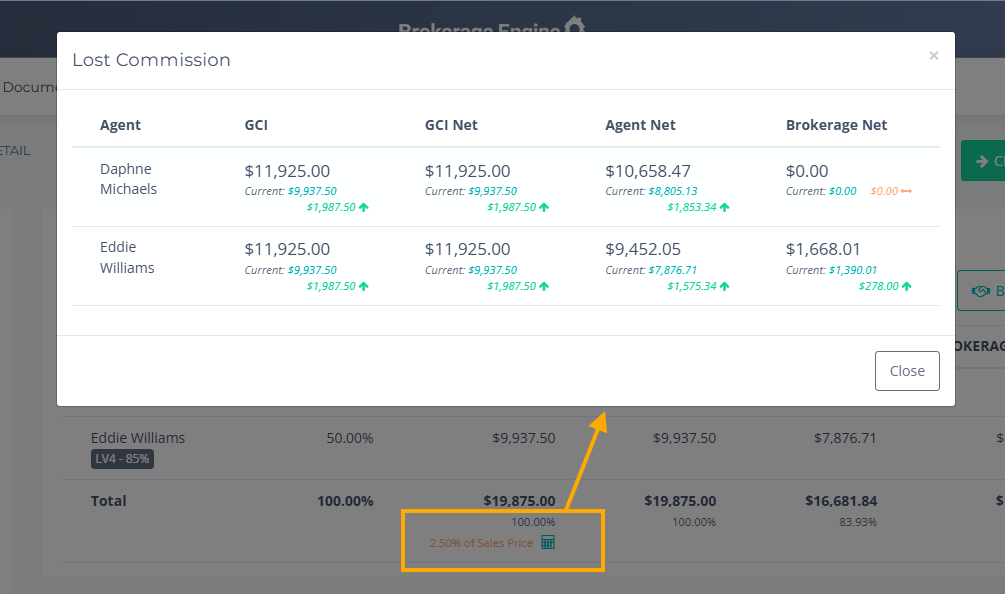
We’ve added a new Lost Commission Tracker to transactions, giving you real-time visibility into how commission calculations compare to your default commission rate. For each side of a transaction, you’ll now see a calculator icon next to the % of Sales Price field. Clicking this icon opens a comparison view that instantly recalculates commissions based on your base rate. The tracker displays original values alongside the recalculated results and clearly highlights dollar variances across key commission metrics - including GCI, GCI Net, Agent Net, and Brokerage Net - so you can quickly see the impact of commission changes without leaving the transaction. |
 |
Vendor Balance Detail Report
We’re excited to introduce the new Vendor Balance Detail Report in BE Accounting.
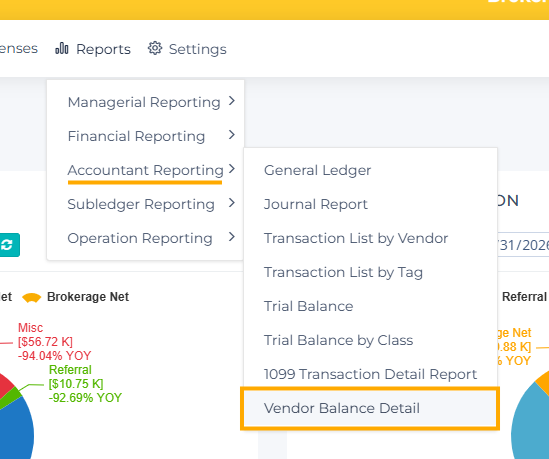
This report provides clear visibility into your outstanding balances with vendors by listing the individual transactions that make up each balance, including bills, payments, and credit memos. It helps you easily understand what you owe, and why, so you can manage accounts payable with confidence.
If you’re using BE Accounting, this new report gives you a straightforward way to track vendor activity, stay organized, and maintain accurate financial records. |
 |
Add New Icon Button on Agent-Facing Invoice
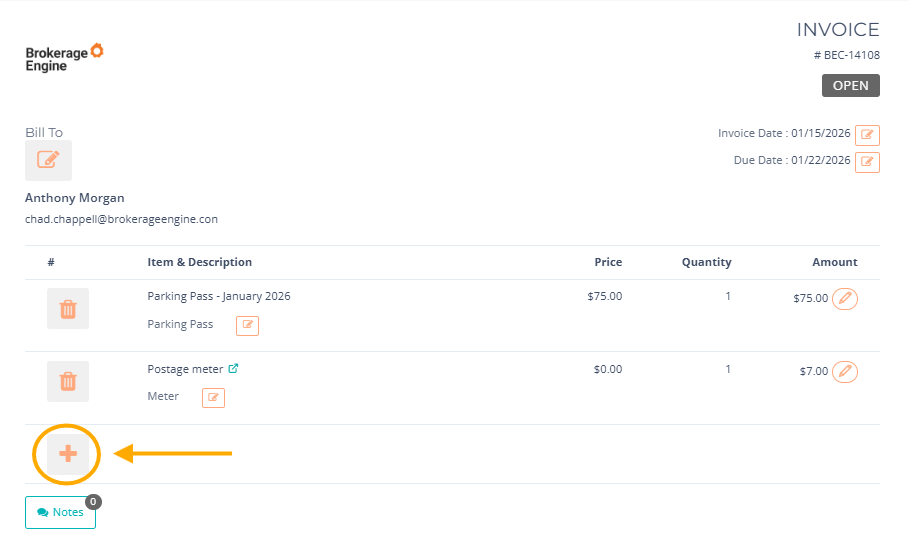
We’ve added a new Add Item icon button to the agent-facing invoice edit page to make invoice updates easier and more flexible.
For open invoices that can be in edit mode, you can now add new line items directly within the invoice. Any newly added items will automatically sync to the corresponding invoice in accounting, ensuring consistency across systems.
This enhancement streamlines invoice management while maintaining accurate financial records. |
 |
If you're interested in any of the new features mentioned above, please contact your Customer Success Manager. If you're not sure who your CSM is, please reach out to our support team at help@brokerageengine.com.
- The Brokerage Engine Team |