Data Export for Document Lists
Overview:
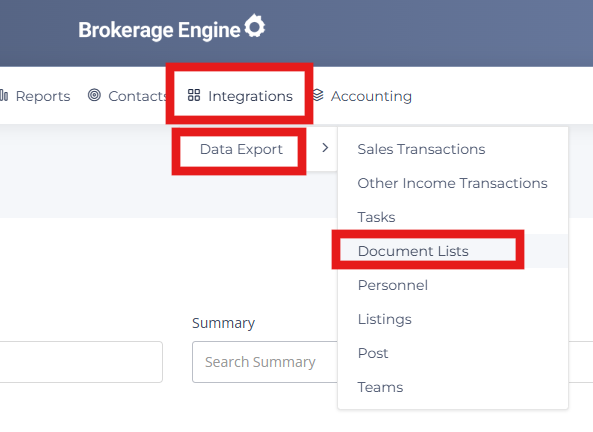
In this article, we will cover how to locate and utilize the Integrations - Data Export - Document Lists Report.
This report allows you to export document list information from Brokerage Engine for reporting and analysis outside the system.
The export includes most of the columns available on the Document Lists page, so you can review document list activity across your brokerage in a spreadsheet or reporting tool such as Excel or Google Data Studio.
As with other data exports, you can choose which columns to include and save your selections as an export template. Each template generates a data feed link that can be connected to an external reporting tool. Feed data refreshes once a day, and clicking Export in Brokerage Engine refreshes it immediately with the latest information.
The export also includes listing and agent identifiers, which you can use to match document list data with your Listings, Transactions, or Personnel data exports.
Please find the available resources below.
Permission Level: Admin + Billing
Report Details:
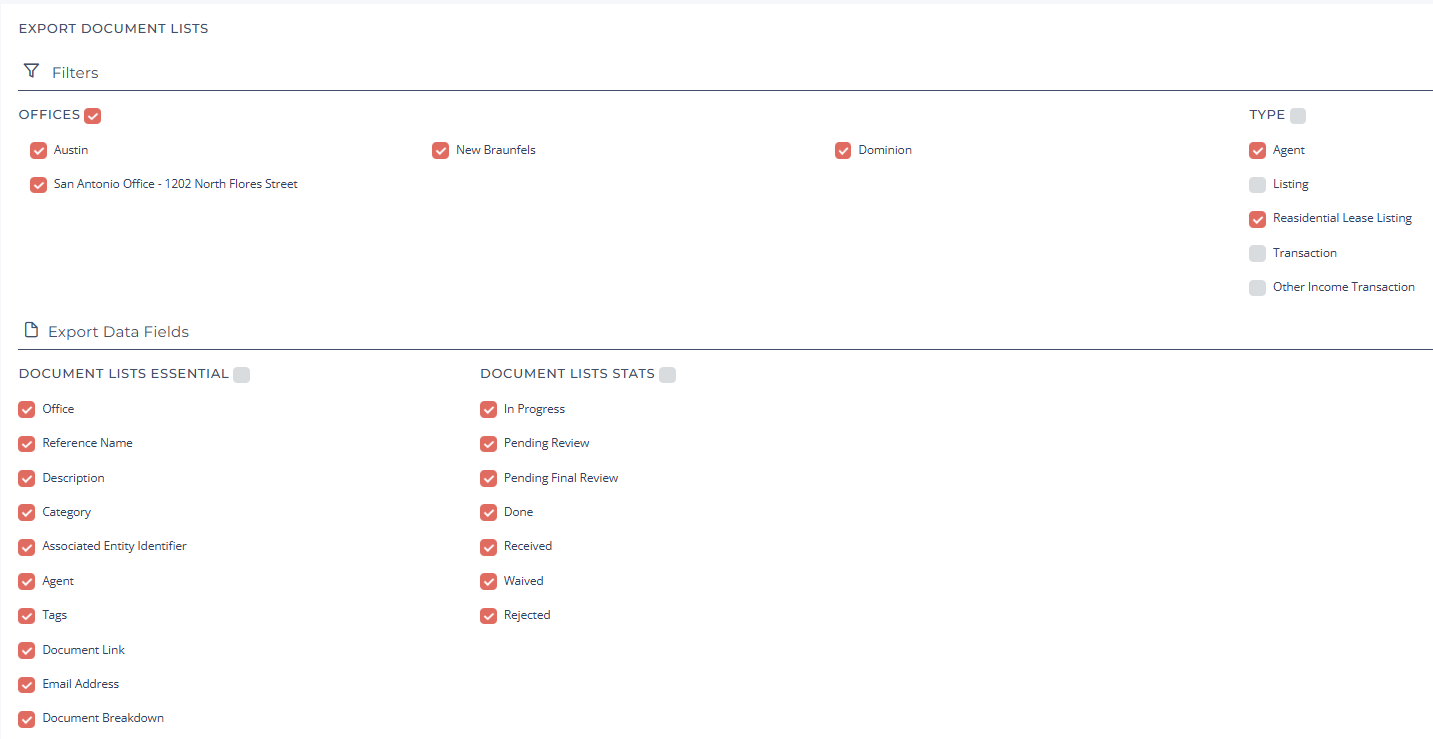
- Filters
- Offices
- Type
- Export Data Fields - You can select the data points you want to run on the report by checking the appropriate options.
- Ability to Export to Excel or CSV
- Ability to Save to Export Templates
- Export Templates allow you to save a report with your selected filters and give it a name for future use. You can easily access the template by copying the link and applying it whenever needed. Additionally, you have the option to remove a saved export template at any time.
- Automating BI Dashboards with Open Data Endpoints - The Data Integrations tab empowers you to move beyond manual CSV downloads. By creating custom export templates, you generate a live, persistent URL that feeds your data directly into external tools.
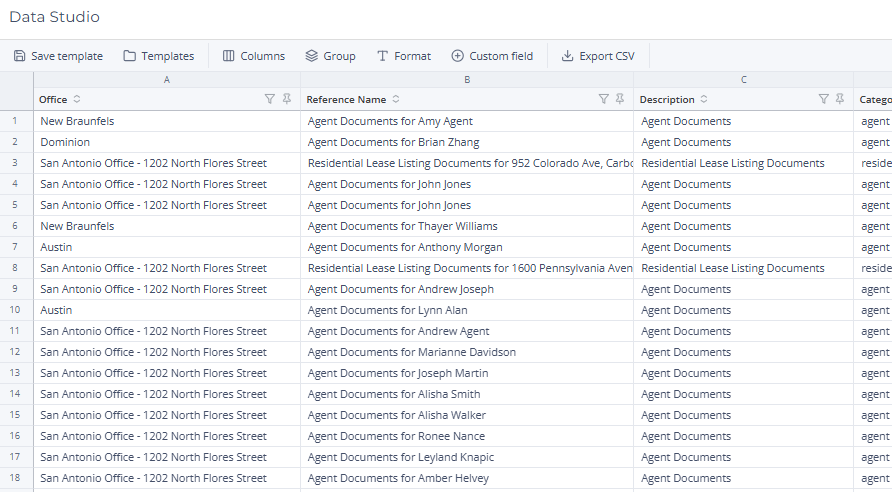
- Ability to View in Data Studio
- Clicking this will load all exported data into Data Studio for review. (Full Screen)
Navigation:
Click directly on image to enlarge